Ergonomic Desk Setup: Tech Tips for Better Posture
Upgrade your desk ergonomics with simple tech tweaks—from monitor height and peripherals to posture apps—for less strain and all‑day comfort.
Posture Alignment Basics: Build your ergonomic desk from the body outward, not the other way around. Aim for a neutral spine, where your ears, shoulders, and hips stack in a relaxed line and your head is balanced rather than jutting forward. Keep shoulders down and open, elbows close to your sides, and forearms roughly parallel to the floor. Wrists should stay neutral, not bent up or down, while your feet rest flat or on a footrest if the chair is high. Place the monitor so the top of the screen is near eye level and the center sits slightly below, at a distance roughly equal to an arm's length. Use OS scaling to enlarge text so you are not leaning in. A monitor arm, adjustable chair, and keyboard tray offer precise alignment. Consider posture reminders on your watch or computer to prompt quick resets and microbreaks. Small cues, repeated consistently, prevent slouch creep and help your tech fit your body, not vice versa.
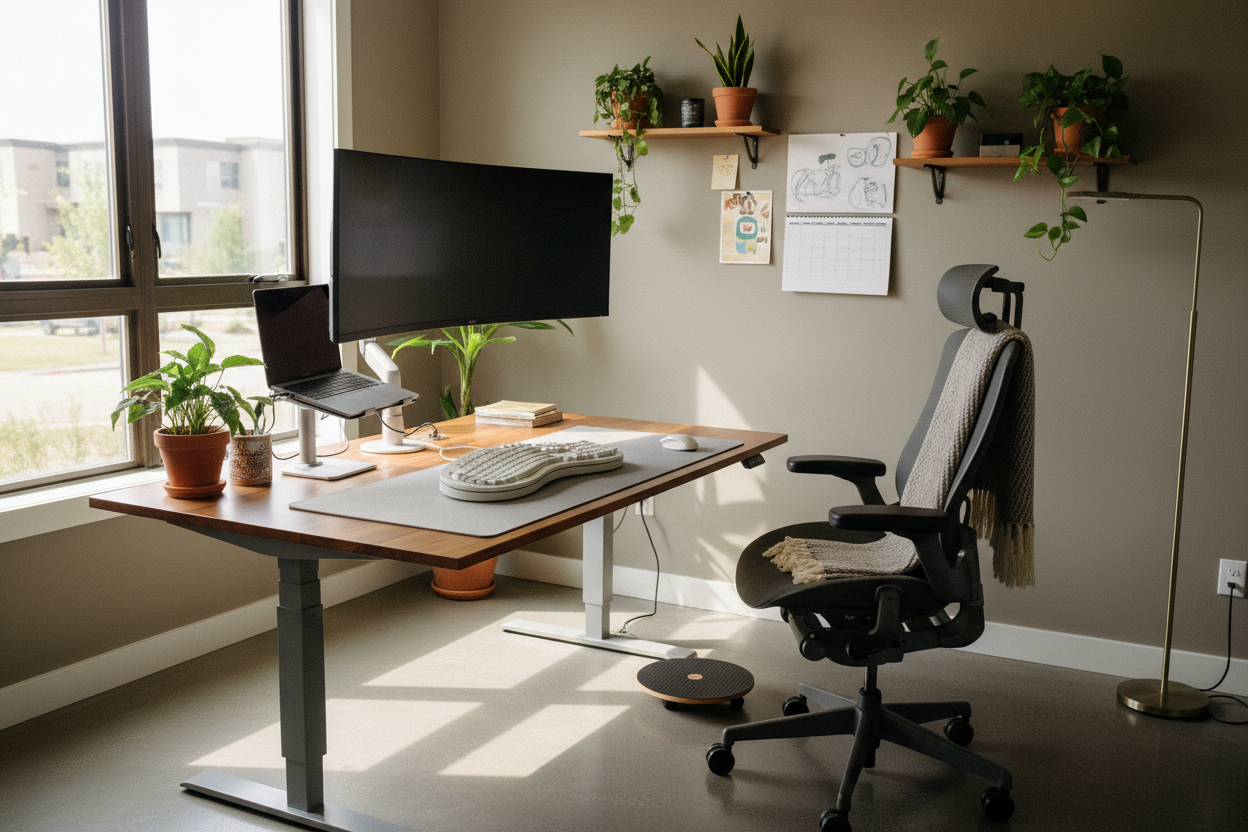
Smart Screen Positioning: Your display setup can either invite slouching or encourage an open chest and steady gaze. Prioritize a centered primary monitor so you do not twist your neck for most tasks. If you run dual monitors, position them symmetrically with bezels meeting in front of you, or keep the secondary at a slight angle to reduce constant head rotation. A portrait-oriented side monitor serves reading, coding, and messaging without vertical scrolling marathons. Choose displays with flicker-free backlights and use blue light warmth late in the day to reduce visual fatigue. Calibrate brightness and contrast to match room light; an overly bright panel compels squinting, while a dim one encourages leaning. Reduce glare with a matte screen, blinds, or a repositioned lamp. A monitor arm enables minute height and depth adjustments, so you can maintain a neutral gaze. Pair with a webcam aligned at eye level to avoid hunching upward or craning downward during calls.
Keyboard and Mouse Mechanics: Your hands spend hours on inputs, so treat them like precision tools. Keep the keyboard flat or with a slight negative tilt so wrists do not hyperextend. A low-profile or split keyboard can reduce reach and shoulder abduction, aligning each hand naturally. Use a palm rest to support palms between keystrokes, not during them, preserving a neutral wrist angle. For pointing, try a vertical mouse to unload forearm pronation, a trackball to minimize shoulder movement, or a pen stylus for creative work. Dial in pointer sensitivity so you can traverse the screen with small, controlled motions rather than sweeping the arm. Assign shortcuts and macro keys to common tasks to cut repetitive reaches and clicks. Keep the mouse close to the keyboard to avoid shoulder strain. Swap worn mouse feet or desk mats to maintain smooth gliding. Subtle refinements here multiply across thousands of daily actions, meaning less effort for the same output.
Laptop to Desktop, The Right Way: Laptops are portable, not posture-perfect. Elevate the screen on a laptop stand until its top aligns with your eyes, then add an external keyboard and mouse to keep arms in a neutral zone. A USB-C or Thunderbolt dock simplifies everything with single-cable power delivery, video, and peripherals, so you do not contort under the desk each time you connect. Place the dock within easy reach to discourage awkward bends. When using multiple displays, mirror your desktop's ergonomic rules: primary screen centered, secondary angled gently, brightness matched. If you rely on the built-in camera, mount an external webcam at eye level to avoid tipping the lid too low or craning your neck. Ensure adequate ventilation under the laptop to keep fans quiet and prevent lap hunching. Maintain consistent OS scaling across monitors to avoid squinting on one and slouching toward another. Mobility is great; posture can be, too.
Chair Fit and Desk Height: Think of the chair and desk as the chassis that supports everything else. Set seat height so your feet plant firmly and your thighs rest comfortably, with a slight open hip angle to encourage circulation. Adjust lumbar support so it nestles into the small of your back, reminding your spine to stay neutral without forcing a rigid pose. Seat depth should let two or three fingers fit between the seat edge and your calves, preventing pressure. Align armrests just below elbow height so shoulders stay relaxed; they should slide under the desk when needed to bring you close to inputs. For a sit-stand desk, program height presets for seated and standing work. Add an anti-fatigue mat and shift weight often; think posture variety, not posture perfection. Keep essentials in your primary reach zone to avoid repeated twisting. A well-fitted base reduces fidgety compensations that add strain over the day.
Lighting, Camera, and Sound Comfort: Visual and audio ergonomics shape your posture more than you might think. Use task lighting that is bright, diffused, and placed to the side to avoid reflections on glossy displays. A monitor light bar can illuminate the desk without washing out the screen, helping your eyes relax and your neck stay neutral. Balance color temperature to match the ambient environment and shift warmer as the evening approaches. Position your webcam at eye level with a stable mount, which helps you sit tall naturally on calls. For audio, choose lightweight headphones with an even headband clamp so you are not tempted to tilt or pinch your neck. A boom microphone or good desk mic reduces the urge to lean forward and shout. Tame echo with soft furnishings, and place speakers so you face them rather than twisting. When the environment feels effortless, your posture follows suit.
Software, Shortcuts, and Healthy Rhythms: Hardware gets you aligned; software keeps you there. Install break timers, posture reminders, or smartwatch nudges that prompt gentle movement and reset routines. Customize keyboard shortcuts, create text expansions, and map macro keys so common sequences take fewer reaches and clicks. Consider voice dictation for long notes to offload repetitive typing. Set focus modes that batch notifications, reducing constant head swivels to phones and secondary screens. A standing desk controller with one-touch presets encourages position changes without friction. If you use creative or coding apps, build workspace profiles that open panels where your eyes and hands expect them. Adopt a quick screen layout hotkey to snap windows, avoiding grab-and-drag chases. Small automations turn healthy posture into the default choice, protecting your attention and your joints while you produce more with less mechanical effort.
Cable Management and Ongoing Care: Order is ergonomic. Good cable management keeps snag hazards off your feet and prevents hunched dives under the desk. Use velcro ties, cable clips, and an under-desk tray or raceway to route power and data cleanly. Label both ends of critical cords so swaps do not require contortionist moves. A quality surge protector or UPS safeguards gear and reduces crouching to reset power. Keep peripherals clean; wipe keycaps, disinfect mouse surfaces, and dust vent grilles so fans stay quiet and you do not lean in to hear coil whine. Replace worn chair casters with smooth-rolling wheels to glide without tugging your core off-center. Revisit monitor height, armrest spacing, and desk presets monthly as projects shift. Ergonomics is maintenance, not a one-time purchase. When your workspace stays tidy and tuned, your posture has one less obstacle and your technology truly serves your body.